Switches can be used to allow kids with physical disabilities to participate in a variety of activities. Sometimes it's hard to know where to look for new and interesting activities that will keep your students excited about using their switch(es). This month's blog contains some resources and places to find ways for your child/student to practice using their switch(es), so that they may become more efficient and independent with them.
How do switches work on the computer?
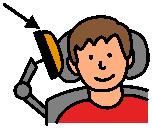
 Switches can be used to cause an action within an activity (i.e. cause and effect) or to move between a set of available options and to select the desired choice (i.e. scanning). If the student is using one switch, then the choices are automatically highlighted in a timed
sequence and when the desired object is highlighted, the student must
activate their switch to make a selection. If the student is using two switches, they can move between the choices by activating one of their switches, and select the desired option by activating their second switch.
Switches can be used to cause an action within an activity (i.e. cause and effect) or to move between a set of available options and to select the desired choice (i.e. scanning). If the student is using one switch, then the choices are automatically highlighted in a timed
sequence and when the desired object is highlighted, the student must
activate their switch to make a selection. If the student is using two switches, they can move between the choices by activating one of their switches, and select the desired option by activating their second switch.
In order for the switches to 'communicate' with the computer, they need to be plugged into some kind of interface. Sometimes the activity is looking for a left mouse-click to perform an action. In this case, a switch-adapted mouse will do the trick! If the software is looking for a different type of input (usually a keystroke of some kind) then a more sophisticated switch interface may be needed, e.g. a Hitch 2, or a Crick USB Switch Interface.
For more information about switches and scanning, have a look at our previous posts, I Can...Find the Right Switch, I Can...Use 2 Switches and I Can....Use My Switch.
Are there switch-accessible activities online?
 Senict Software has some free 'lite' cause and effect activities for members. You can purchase a subscription that will unlock additional features on these activities. Cause and effect activities include Door Step Ding Dong, Vehicles, Shapes, Meet the Aliens, Happy Shapes, and Flutterby. The error-free Happy Shapes Choosing activity allows your student to choose which shapes he wants to 'dance' around the screen by using 2-switches....1 switch to move to the desired shape, and the second switch to choose the shape. Older students may enjoy hanging out with James Bond, or singing along with the Beatles or Justin Bieber!!!
HelpKidzLearn (HKL)
Fun games, activities & tools designed specifically for young children and those with learning difficulties. Students can interact with these activities using a single switch and some of the activities allow 2-switch access as well. When you register on their site, you get access to 10 free activities - 2 in each of the categories of Early Years, Games, Stories, Creative, and Find Out. With a subscription, you get access to all of the available activities. Also through the HKL website, you can subscribe to the ChooseIt Maker 3 online software. Here you can create, edit and play personalized learning activities that can be used online or on your iPad or Android tablet!
Teacheing Learners with Multiple Special Needs
This is a list of free online switch activities for learner with multiple or significant special needs. The list was updated in the fall of 2015. The activities are simple and enjoyable and the categories include: Cause and Effect (and Press to Play), Single Switch Scanning/Timed Single Switch Response and Two Switches.

Ginger Tiger is designed and tailor-made for learners with a physical disability, sensory impairment or learning difficulty. It's accessible on many different platforms (iPad, Android tablets, Win 8 tablets etc.) and via different access methods (Switches, Eye Gaze, Touch screens, keyboards etc.). You can sign-up for a free one-week trial or purchase an annual subscription for full access to the activities.
Have a look at One Switch from the UK. In addition to lots of games, they also have resources related to making other games, music and art accessible via switches.
 Glenda's Assistive Technology and More... has loads of links to online and iOS activities that can be used with switches. She also provides links to companies who sell switches, toys and environmental controls. In addition, you can find other resources for your student who is using switches. She introduces how to use an iPad for cause and effect switch activities and suggests getting more switch control via software that is meant to be switch accessible.
With Accessible YouTube, switch users can control YouTube videos!!! Plugging their switch into a switch interface that sends keyboard equivalents to the computer (e.g. Don Johnson Switch interface), students can move between video options and choose the one they want to watch. Once a video is playing, they can pause, rewind, watch related videos, or go back to the main list of videos that they started from. Imagine the control!! Be aware that this site does not filter any of the search results (input initially by someone who can type in the search) and that the suitability of the content may need to be monitored by an adult.
We've all heard of Angry Birds, right? Well, check out the Angry Pig Switch Game at Special Bites! Here you can use your switch to catapult the angry pig and explode as many bombs as you can. See if you can work your way through all 4 levels of the game!!! If Angry Pigs aren't your thing, not to worry! There are sports and seasonal switch games here as well!
 Shiny Learning has games that encompass cause and effect, targeting, visual tracking, timing, switch skills, touch skills and more. You can trial free versions of the games online for 7 days. If you like them after you try them out, you can purchase them so that you can play them offline as well.
Priory Woods School and Arts College offers more than 60 musical videos that your student can start and re-start using their single switch. The videos cross a range of interests from classic movie themes, current pop and the one you just can't out of your head....the animated characters from the Madagascar movie dancing to the song "I Like to Move It!". These videos are super engaging for early switch users and are designed to help children understand and generalize cause and effect. The videos can be played online or downloaded for use on a PC or Macintosh computer.
Let's use our switches to read!!!
 Tar Heel Reader has a collection of free, easy-to-read, and accessible books on a wide range of topics. Each book can be speech enabled and accessed using multiple interfaces, including touch screens, the IntelliKeys, and 1 to 3 switches. You can even write your own books here and publish them to the website!
Tar Heel Gameplay is a new site with free, easy to play games everyone can play. The games are made from YouTube videos and are accessible using 1-3 switches, mouse or touch screens. You can even create your own games from You Tube videos, using either a Basic, Precise or Advanced creator, depending on how complex you want your game to be. Note that Tar Heel Gameplay is being developed and tested in the Google Chrome browser - this is the recommended browser for its use.

Tumblebooks is an online library of children's books. Although this website is not specifically for switch users, books can be accessed with a switch by placing the mouse cursor over the 'turn the page' button and ensuring that the mode is set to manual. Your community may have a subscription...check out your local library's website to see if you can access Tumblebooks using your library card. You can see a free preview of how Tumblebooks works here.
My Own Books 2 Go was developed by SLP Pati King-DeBaun and has more than 200 'easy to read' books. Students who use switches can control the book reading. The books can be read aloud by the computer and shared via email. Students can also become authors and create their own books to read on their own or share with others.
Marblesoft Simtech sells lots of different switch accessible software and if you're looking for something with more switch-scanning features than what's available in the online activities listed above, you may find it here.
What about software that's already available at my school (in Ontario)???
Clicker is a powerful yet easy-to-use writing support and multimedia tool that enables children to write with whole words, phrases or pictures. Clicker activities can be customized to meet the access (e.g. switch access) and layout needs of the student.
Clicker Paint is an easy-to-use paint program that enables your student to illustrate talking books, do some writing, colouring or drawing activities......all with their switch! Talk to your teachers/clinicians to see if it makes sense to be using these programs with your child.
Want more info about the skills involved in learning to use a switch?
Do we always have to practice switches on the computer?
 The answer here is "No"....any time your student gets to use their switches, they are practicing the thoughts and movements that are required to activate the switch and becoming more familiar with how the switch works. There are many commercially available products that are switch accessible. Here are some websites to check out:
Enabling Devices
Adaptive Tech Solutions
Special Needs Toys
Ablenet has lots of ideas and products related to switch use. For example, the Switch Activated All Turn It Spinner is a great tool that enables random selections for game playing. You can create overlays for the spinner which makes this device useful for all kinds of activities.
Want to try out some switches or an interface? Many Children's Treatment Centres have equipment loan pools where you may be able to borrow an item to see how it really works. Check in with your child's Occupational Therapist. For example, at TVCC in London, Ontario, there are a variety of switches, switch mounts, switch interfaces and switch adapted toys that can be borrowed by TVCC clients. Contact your TVCC clinician for details if you are interested.